—Mario Guillen
Use GNU Stow to Manage Your Claude Code Environment on Any Linux Machine
LinuxClaude CodeDotfilesDeveloper Tools
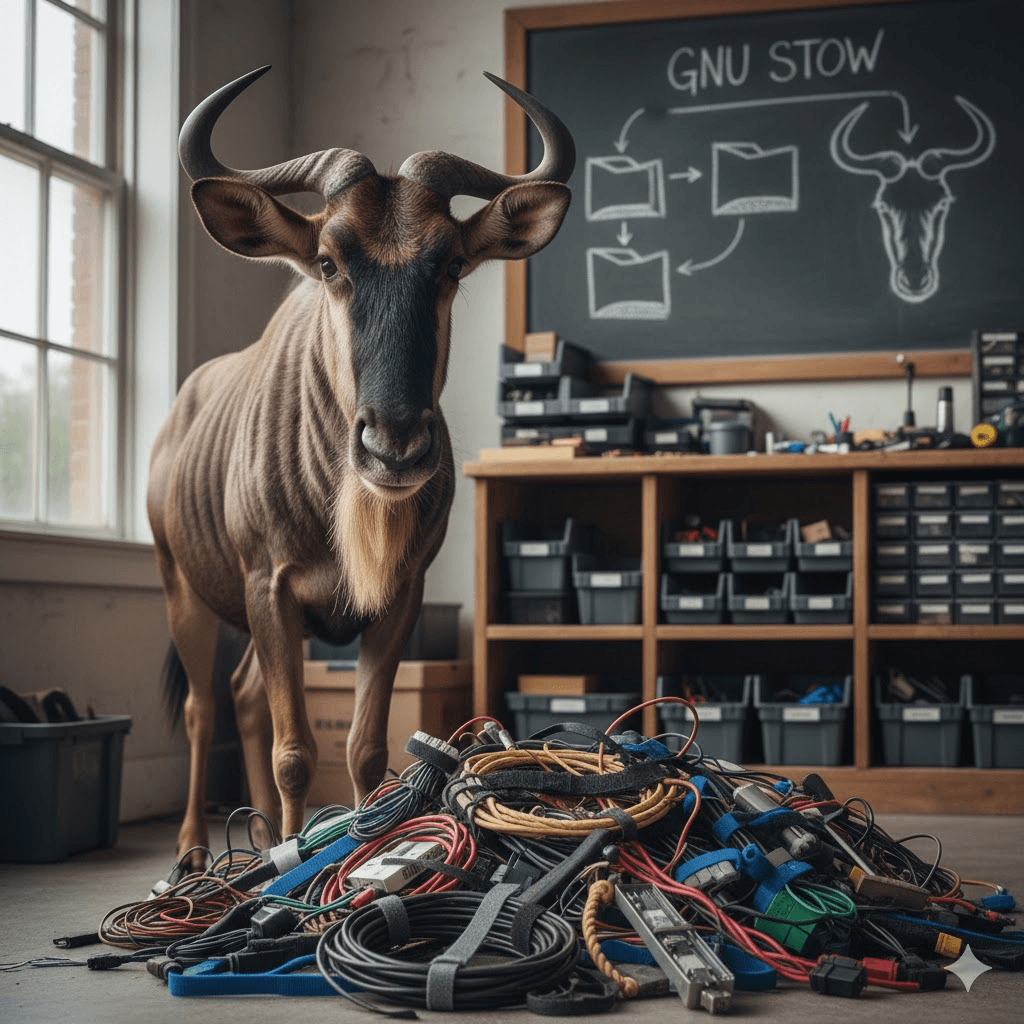
If you work across multiple Linux machines — a desktop, a laptop, a remote server — keeping your development environment consistent is a constant challenge. GNU Stow is a lightweight symlink farm manager that solves this elegantly. Combined with a Git repository, it lets you version-control all your configuration files (dotfiles) and deploy them to any machine in seconds. In this tutorial, you will learn how to use GNU Stow to manage your Claude Code environment so your settings, memory files, and shell configuration follow you everywhere.
What Is GNU Stow?
GNU Stow is a symlink farm manager. It takes a directory of files and creates symbolic links to them from a target directory — typically your home directory. The key insight is that Stow mirrors the directory structure inside a package folder onto the target. If your package folder is ~/dotfiles/claude and it contains .claude/settings.json, Stow will create ~/.claude/settings.json as a symlink pointing back to the original file in your dotfiles repository.
This approach means you can store all your configuration in a single Git repository, push it to GitHub or any Git host, and recreate your entire setup on a fresh Linux installation with just a handful of commands. It is especially powerful for Claude Code users because Claude stores its configuration, memory files, and CLAUDE.md instructions all in predictable locations under your home directory.
Prerequisites
Before getting started, make sure you have the following on your Linux system:
A Linux system running Ubuntu 20.04+, Debian 10+, Fedora, Arch, or any similar distribution
Git installed and a GitHub (or other Git host) account for storing your dotfiles
Claude Code installed (or you plan to install it as part of this tutorial)
Basic comfort with the terminal and command line
Step 1 — Install GNU Stow
Stow is available in the package repositories of every major Linux distribution. Install it with your package manager:
On Debian and Ubuntu:
sudo apt install stowOn Fedora and RHEL:
sudo dnf install stowOn Arch Linux:
sudo pacman -S stow
Verify the installation with: stow --version
Step 2 — Create Your Dotfiles Repository
The dotfiles repository is the heart of the whole system. Create a dedicated directory in your home folder and initialize it as a Git repo:
mkdir ~/dotfiles && cd ~/dotfiles && git init
Inside this directory, each subdirectory represents a “package” — a logical grouping of configuration files for a single tool. Stow will symlink the contents of each package into the target directory (your home folder by default). A well-organized dotfiles repository for a Claude Code setup might look like this:
~/dotfiles/
├── claude/
│   ├── .claude/
│   │   ├── settings.json
│   │   └── CLAUDE.md
│   └── .claude.json
├── bash/
│   └── .bashrc
├── zsh/
│   └── .zshrc
└── git/
    └── .gitconfig
The critical concept is that Stow strips the package directory name from the path and creates symlinks relative to the target. So ~/dotfiles/claude/.claude/settings.json becomes ~/.claude/settings.json on your live system.
Step 3 — Set Up Your Claude Code Configuration
Claude Code stores its global configuration in two key places. First, ~/.claude/settings.json holds your global settings such as tool permissions, environment variables, and update channel preferences. Second, ~/.claude/CLAUDE.md is a global memory file that Claude Code reads at startup to pick up context and instructions that apply to all your projects. There is also ~/.claude.json which stores authentication state — you should not put this in version control since it contains session tokens.
Start by creating the package directory structure and moving your existing Claude configuration into it:
# Create the claude package directory inside your dotfiles repo
mkdir -p ~/dotfiles/claude/.claude

# Move your existing Claude config (if you have one already)
mv ~/.claude/settings.json ~/dotfiles/claude/.claude/settings.json

# Move or create your global CLAUDE.md memory file
mv ~/.claude/CLAUDE.md ~/dotfiles/claude/.claude/CLAUDE.md

# (or create a new one if it doesn't exist)
touch ~/dotfiles/claude/.claude/CLAUDE.md
Now create a baseline settings.json if you don’t have one. Open ~/dotfiles/claude/.claude/settings.json in your editor and add your preferred configuration. A useful starting point looks like this:
{
  "autoUpdatesChannel": "stable",
  "env": {
    "DISABLE_AUTOUPDATER": "0"
  },
  "permissions": {
    "allow": [
      "Bash(git:*)",
      "Bash(npm:*)",
      "Bash(python3:*)"
    ],
    "deny": []
  }
}
Also populate your global CLAUDE.md with any instructions you want Claude Code to always follow, regardless of which project you are in. For example:
# Global Claude Code Instructions
- Always write clear, readable code with descriptive variable names
- Prefer explicit error handling over silent failures
- When working with shell scripts, use bash and add set -euo pipefail at the top
- Ask before making changes to configuration files or package.json dependencies
Step 4 — Stow the Claude Package
With your files in place, it is time to let Stow create the symlinks. The basic stow command takes a package name and, when run from the dotfiles directory, creates symlinks in the parent directory (your home folder):
cd ~/dotfiles
stow claude
That single command creates symlinks for every file in the claude package. You can verify the result:
ls -la ~/.claude/
# You should see something like:
# settings.json -> ~/dotfiles/claude/.claude/settings.json
# CLAUDE.md -> ~/dotfiles/claude/.claude/CLAUDE.md
If Stow encounters an existing file (not a symlink) at the target location, it will refuse to overwrite it and show a conflict error. In that case, delete or back up the existing file first, then re-run the stow command. To simulate what will happen without making any changes, use the dry-run flag:
stow --simulate claude
Step 5 — Add Shell and Git Configuration
Claude Code reads the ANTHROPIC_API_KEY environment variable and respects your PATH setup, so managing your shell configuration alongside your Claude settings is a natural fit. Add bash or zsh configuration to your dotfiles:
# Create the bash package
mkdir -p ~/dotfiles/bash
mv ~/.bashrc ~/dotfiles/bash/.bashrc

# Or for zsh users
mkdir -p ~/dotfiles/zsh
mv ~/.zshrc ~/dotfiles/zsh/.zshrc

# Add Git config
mkdir -p ~/dotfiles/git
mv ~/.gitconfig ~/dotfiles/git/.gitconfig
Then stow all three packages in one command:
cd ~/dotfiles && stow claude bash git
If you want to store your ANTHROPIC_API_KEY in your shell config, add it to your .bashrc or .zshrc inside the dotfiles package. However, be careful: never commit real API keys to a public repository. A safer approach is to put export ANTHROPIC_API_KEY="" as a placeholder and load the actual key from a secrets manager or a local file that is listed in your .gitignore.
Step 6 — Commit to Git and Push
Before committing, create a .gitignore file in the dotfiles root to exclude anything you should not share publicly:
# ~/dotfiles/.gitignore
.secrets
*.local
.claude.json
Now commit everything and push to your remote repository:
cd ~/dotfiles
git add .
git commit -m "Initial dotfiles with Claude Code configuration"
git remote add origin git@github.com:yourusername/dotfiles.git
git push -u origin main
Step 7 — Bootstrap a New Machine in Minutes
This is where everything comes together. When you sit down at a fresh Linux machine, you can restore your entire Claude Code environment with a short sequence of commands. Create a bootstrap script in your dotfiles repository to automate the process:
#!/usr/bin/env bash
# ~/dotfiles/bootstrap.sh
set -euo pipefail

echo "Installing dependencies..."
sudo apt update && sudo apt install -y stow git curl

echo "Installing Claude Code..."
curl -fsSL https://claude.ai/install.sh | bash

echo "Cloning dotfiles..."
git clone git@github.com:yourusername/dotfiles.git ~/dotfiles

echo "Applying dotfiles with Stow..."
cd ~/dotfiles
stow claude bash git

echo "Done! Log out and back in for shell changes to take effect."
Make the script executable and commit it:
chmod +x ~/dotfiles/bootstrap.sh && git add bootstrap.sh && git commit -m "Add bootstrap script"
On a new machine, all you need to do is clone and run:
git clone git@github.com:yourusername/dotfiles.git && bash ~/dotfiles/bootstrap.sh
Day-to-Day Workflow
Because Stow uses symlinks rather than copying files, any change you make to a file via its normal path (e.g., editing ~/.claude/settings.json directly in your editor) is automatically reflected in the dotfiles repository. You are always editing the source of truth. The workflow is simple: edit a configuration file as you normally would, then navigate to your dotfiles directory and commit the change.
To keep other machines in sync, just pull the latest changes and re-run stow to pick up any new packages or files:
cd ~/dotfiles && git pull && stow claude bash git
To remove a package’s symlinks (unstow it), use the -D flag:
cd ~/dotfiles && stow -D claude
Tips and Best Practices
Use separate packages for each tool so you can stow only what you need on a given machine. A server might need only the claude and git packages, while your personal desktop gets everything.
Keep your CLAUDE.md global instructions practical and focused on patterns you truly want everywhere. For project-specific rules, create a CLAUDE.md in each project’s root instead.
Run stow --restow (or stow -R) to refresh all symlinks after reorganizing your dotfiles directory. This is useful when you add new files to an existing package.
Use a README.md in your dotfiles repository to document what each package does and how to run the bootstrap script — future you will thank present you.
Consider adding a Makefile to your dotfiles root with targets like make stow-all and make unstow-all to make day-to-day management even faster.
Conclusion
GNU Stow and Git together form a powerful, lightweight system for managing your entire developer environment — including your Claude Code setup. Once the initial structure is in place, adding new machines takes minutes instead of hours, and every configuration change you make is automatically tracked in version control. Your CLAUDE.md global memory file, your settings, your shell aliases, and your Git configuration all stay in sync across every Linux machine you use. Whether you are spinning up a new cloud server or getting a new laptop, your AI-powered development environment is just a clone and a stow command away.